
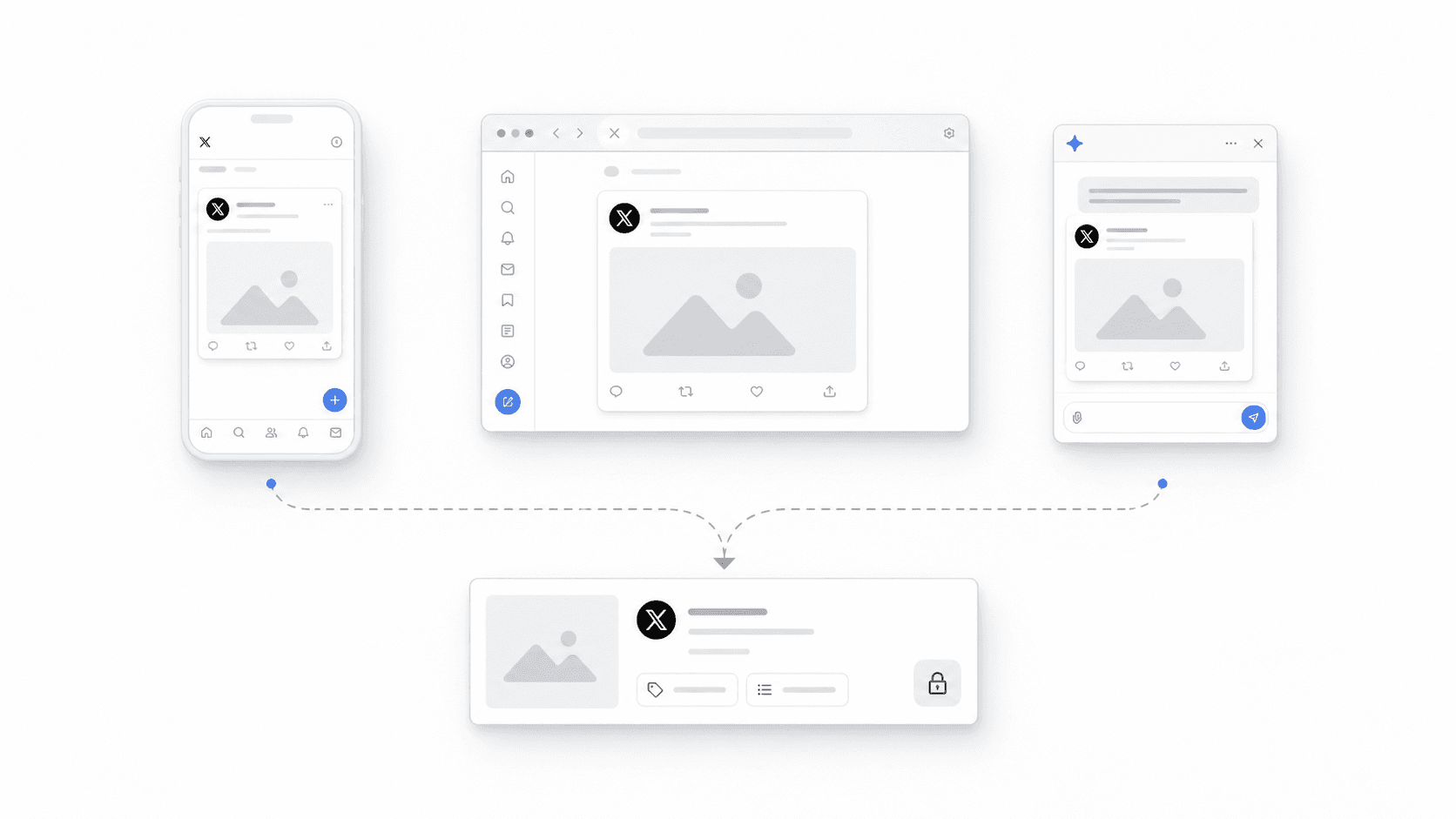
What Manual Add means in socialmemory
Manual Add is the one-item path for a supported X post or X Article. You provide the exact X URL. socialmemory then fetches the source through its own server process and adds the item to your private Library.
It is complementary to sync, not a replacement for it. The Chrome extension is still the primary way to collect your existing Likes and Bookmarks from X (formerly Twitter) in bulk. Manual Add is for the post in front of you when you want it in the Library now, including when you are browsing on a phone.
How to save an X post from your phone
Mobile Manual Add, step by step
- 1Open the post in X
Find the X post or X Article you want to keep. Make sure you are looking at the specific item, not only an account profile or a search page.
- 2Copy the X link
Use the Share action on the post, then choose Copy link. A link is the web address that points back to that exact X item.
- 3Open your socialmemory Library
In your phone browser, sign in to socialmemory and open the Library. You do not need the Chrome extension for this one-item save.
- 4Choose Add from X
Open the Manual Add control and paste the copied X URL into the URL field.
- 5Add an optional note or tags
Write a short note about why the post matters or add tags you will recognize later. These are your words, not text invented by socialmemory.
- 6Save and watch the status
Submit the item. The Library shows the real save state while socialmemory fetches the supported X content. You can keep using the Library instead of waiting on a frozen screen.
Use the same Manual Add flow on desktop
The desktop flow is intentionally the same: copy one X URL, open the Library, choose Add from X, paste the URL, add an optional note or tags, and save. The difference is only the screen you are using.
This is useful when a new post has not been liked or bookmarked, when you are working in a browser where the Chrome extension is not running, or when you want to attach a note at the moment you save it.
Save one X URL from Codex, Claude Code, or Cursor
When Agent Access is connected, the local socialmemory connector can use the same server-authoritative Manual Add path. Give the agent the exact X post or X Article URL. You may also provide your own note and tags.
Agent Manual Add
- 1Paste one supported X URL
Tell Codex, Claude Code, or Cursor exactly which X URL you want saved. Do not ask the agent to invent the post text or author.
- 2State the optional metadata
Add a note or tags in the request if they help. For example: “Add the note ‘Pricing reference’ and the tag ‘pricing.’”
- 3Ask for the resulting Library item
The agent should report the actual outcome. If the URL already exists, socialmemory reuses it and may merge the new note or tags instead of creating a duplicate.
If you use Cursor, the Cursor setup guide explains how to connect Agent Access first.
Manual Add versus full X sync
| Question | Manual Add | Chrome Sync |
|---|---|---|
| How much does it collect? | One explicit supported X URL | Likes and Bookmarks from your signed-in X account |
| Where does it work? | Web Library on phone or desktop, plus connected agents | Chrome on the computer with your readable X session |
| When should I use it? | For the post in front of you right now | For first sync and later incremental refreshes |
| Can I add a note and tags? | Yes, at save time | Add or edit them in the Library after sync |
For older posts that are already in a long saved list, follow the guide to searching X bookmarks instead of repeatedly adding individual URLs.
What happens after you choose Save
- socialmemory validates that the address is a supported X post or X Article URL.
- The server claims the work and records a real processing state so retries do not silently create duplicate jobs.
- When the item is ready, it appears in the same Library as your synced Likes and Bookmarks.
- If enrichment finishes later, the Library updates the item without asking you to create it again.
- If the item cannot be saved, the Library shows a useful failure state instead of pretending it succeeded.
The exact time can vary because the source has to be read and normalized. Normalized means converted into the consistent fields the Library uses for author, text, date, source state, attached context, and media metadata.
X Articles, video posts, and GIF posts
Manual Add supports an eligible X post or X Article URL. An X Article is X’s long-form publishing format. It is different from a normal short post, but you still save the explicit article URL.
For video and GIF posts, socialmemory preserves the useful identity of the item without becoming a media player. The Library shows a fixed thumbnail and keeps the Video or GIF badge and filter. To watch or animate the media, open the original post on X.
Limits and privacy to understand
- Only supported X post and X Article URLs belong in Manual Add. Profiles, search pages, arbitrary websites, and invented content do not.
- Protected, deleted, unavailable, or otherwise inaccessible source content may fail to save.
- Manual Add is subject to the account’s current eligibility and usage limits.
- Your optional note and tags are stored with the private Library item.
- An agent can save only when Agent Access is connected and you explicitly request the action.
- The fallback API is not broader than the agent connector and does not accept agent-supplied post content.
Sources for saving one X post
- X Help: How to use BookmarksOfficial X description of saving posts with Bookmarks.
- X Help: How to share a postOfficial X steps for copying and sharing a post link.
- X Help: About X ArticlesOfficial X description of its long-form Article format.
- socialmemory MCP v0.4.0 READMEOfficial public connector contract, including explicit one-URL saves.
- socialmemory homepageCurrent public overview of Chrome Sync, the web Library, and Agent Access.
- socialmemory Privacy PolicyCurrent public description of saved X content, notes, tags, and agent access data.