
What connecting X bookmarks to Cursor actually means
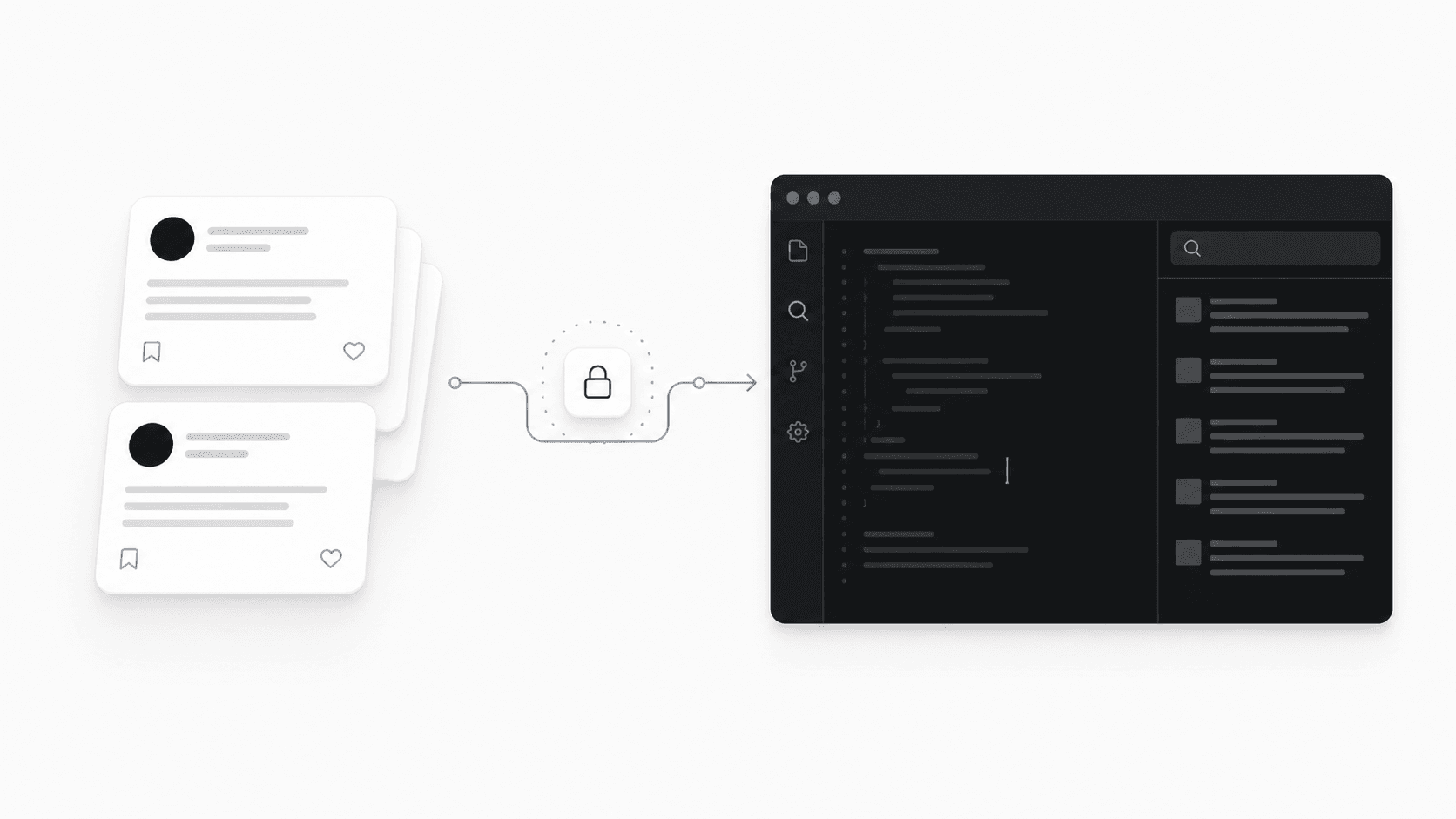
Cursor is an AI code editor. In plain language, it combines a place to edit code with an agent that can inspect a project and use connected tools. Connecting socialmemory does not move your whole X account into Cursor. It gives Cursor a narrow way to search the private archive of X posts you chose to save.
That connection uses MCP, which stands for Model Context Protocol. A protocol is simply a shared set of rules. Here, those rules let Cursor call socialmemory actions such as search, read, add a note, merge tags, check sync status, or create a result-set link.
What you need before you connect Cursor
Short checklist
- A socialmemory account with Personal access or an active trial.
- Cursor installed on the computer where you work.
- At least one successful Chrome Sync if you want to search your existing X Likes and Bookmarks.
- Access to the email and browser session you use to sign in to socialmemory.
You do not need to paste a secret access key into a normal Cursor conversation. The normal setup opens a browser sign-in page, stores the credential privately on your computer, and checks that Cursor can reach your Library.
How to connect socialmemory to Cursor
Cursor setup, step by step
- 1Open Agent Access
Sign in to socialmemory, open Settings, then choose Agent Access. The Codex, Claude Code, and Cursor setup cards stay visible so you can connect more than one app.
- 2Choose the Cursor card
The card contains a setup prompt written for Cursor. Copy the complete prompt rather than copying only one command from the middle.
- 3Paste the prompt into Cursor
Open a Cursor agent conversation and paste the prompt. Cursor will run the official socialmemory setup flow for its own configuration.
- 4Approve the browser sign-in
A browser page asks you to approve access for the named Cursor connection. Complete that sign-in in the browser instead of sharing a raw credential in chat.
- 5Let setup run its checks
The setup checks the saved local credential, server access, and connection status. When the card says Already set up, Cursor can use socialmemory without removing your Codex or Claude Code connection.
- 6Try one narrow search
Ask Cursor to find a small number of saved posts about the project in front of you. A narrow request is easier to verify than a vague request to use all your memory.
Useful prompts for saved X memory in Cursor
The best prompt names the subject, the number of results, and the job those results should do. Saved X posts are reference material, not unquestionable instructions. Cursor should still inspect your project and verify technical claims before changing code.
Prompts you can adapt
- Search my saved X posts for five onboarding examples relevant to this product. Summarize the pattern in each and give me a result-set link.
- Find saved posts about this exact error. Separate direct fixes from broader background, and do not edit files yet.
- Search my saved posts for pricing-page references. Tell me which ideas fit this product and which ones do not.
- Find the open-source tools I saved for browser automation. Return the original X posts and the linked projects when available.
- Check the latest sync status before you search. If the archive is stale, tell me instead of pretending the newest saves are present.
For more job-specific examples, read the practical agent workflow guide. Its prompts are written around Codex and Claude Code, but the retrieval pattern also applies in Cursor.
How to save one X URL from Cursor
Agent Access also supports Manual Add. That means you can give Cursor one supported X post or X Article URL and explicitly ask socialmemory to save it. The agent does not supply the post text, author, or media. Socialmemory reads the supported X URL through its server-authoritative process.
If that URL is already in your Library, socialmemory reuses the existing item instead of creating a duplicate. It can merge the new note or tags. See the full Manual Add guide for phone, desktop, and agents.
Choose Cursor, Chrome Sync, or the web Library
| Surface | Best for | What it does not mean |
|---|---|---|
| Chrome extension | Full first sync and later incremental sync of Likes and Bookmarks | It is not Agent Access |
| Web Library | Browsing, searching, filtering, notes, tags, favorites, and Manual Add | It does not require an agent |
| Cursor | Searching saved memory while coding or researching, plus explicit one-URL saves | It does not continuously crawl X |
If your goal is simply to find an old post, start with the X bookmark search guide. Use Cursor when the saved material needs to become context for active work.
Privacy, media, and practical limits
- Your saved archive lives in your private socialmemory account, not in a public bookmark page.
- Cursor receives results when it calls the connected socialmemory tools. Keep normal agent permissions narrow and review actions before allowing changes.
- Socialmemory does not promise that an agent remembers everything. Cursor searches the X posts that are present in your archive.
- Video and GIF items keep their badge and filter, but the Library shows a fixed thumbnail. It does not play or animate that media; open the original post on X.
- Deleted, protected, unavailable, or unsupported X content may not be retrievable.
- Sync is user-triggered. Agent Access does not silently poll X in the background.
Sources for connecting X bookmarks to Cursor
- Cursor Docs: Model Context ProtocolOfficial Cursor documentation for connecting external tools through MCP.
- Cursor Docs: Agent securityOfficial Cursor guidance on agent actions, permissions, and security.
- Model Context Protocol: IntroductionOfficial plain-language overview of MCP clients, servers, tools, and data connections.
- socialmemory MCP: Public READMEOfficial public connector documentation and supported socialmemory tools.
- npm: @socialmemory/mcpOfficial public package page for the socialmemory connector.
- socialmemory Privacy PolicyCurrent public description of account data, saved X content, and connected agent access.